Teamarr instructions.
For more information see the Github
https://github.com/egyptiangio/teamarr Please ask all questions in the
Teamarr section under Tools is the
Dispatcharr Discord
Getting started create a docker compose
Set your volume to the folder you wish and Timezone to your local region
Once you start your container docker compose up -d access by
http://localhost:9195 or your IP and port if
set differently.
Getting Started
When you first open Teamarr the Dashboard will open

Across the top is your menu
Dashboard The basic overview screen and the EPG Generation
results
Templates Where you create and edit templates used for EPG
Generation
Teams Where you specify which teams for team based channels EPG
Events Use to specify which M3U Groups to create Event based
channels
Channels Manage the Event channels created in Dispatcharr
Settings Settings for Teamarr including defaults and
Dispatcharr Integration
Templates
Here is where you can customize how you want the EPG settings.
Set up a template for both Team channels and a separate template for Event
channels. You can also use the defaults or templates jesmannstl has made
for Teams and
Events (Right Click and Download)
Create a template or Import using the Import template button. For this
we're importing both a team and event template.
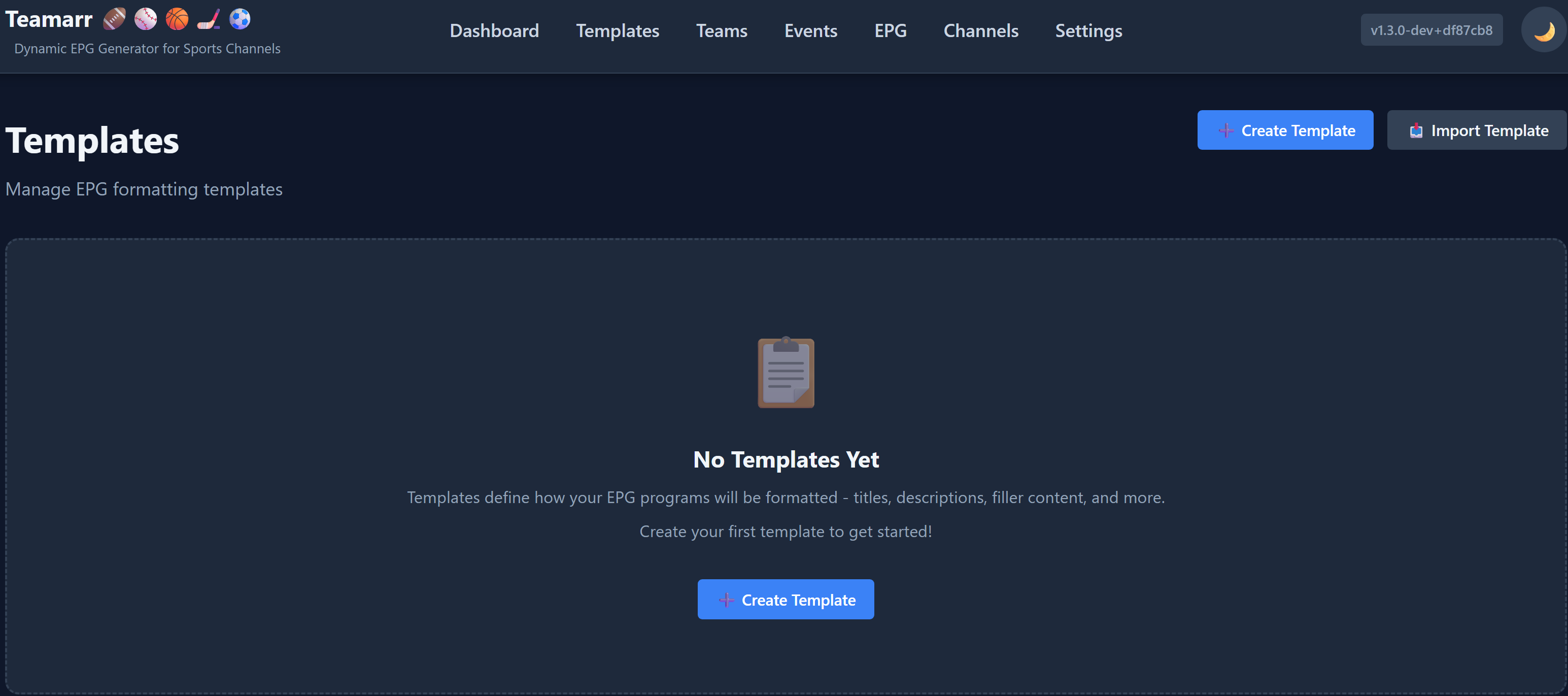

Event Template
This is the template for events when you Click Edit or Create if starting from
scratch you will first be on the Basic Info page
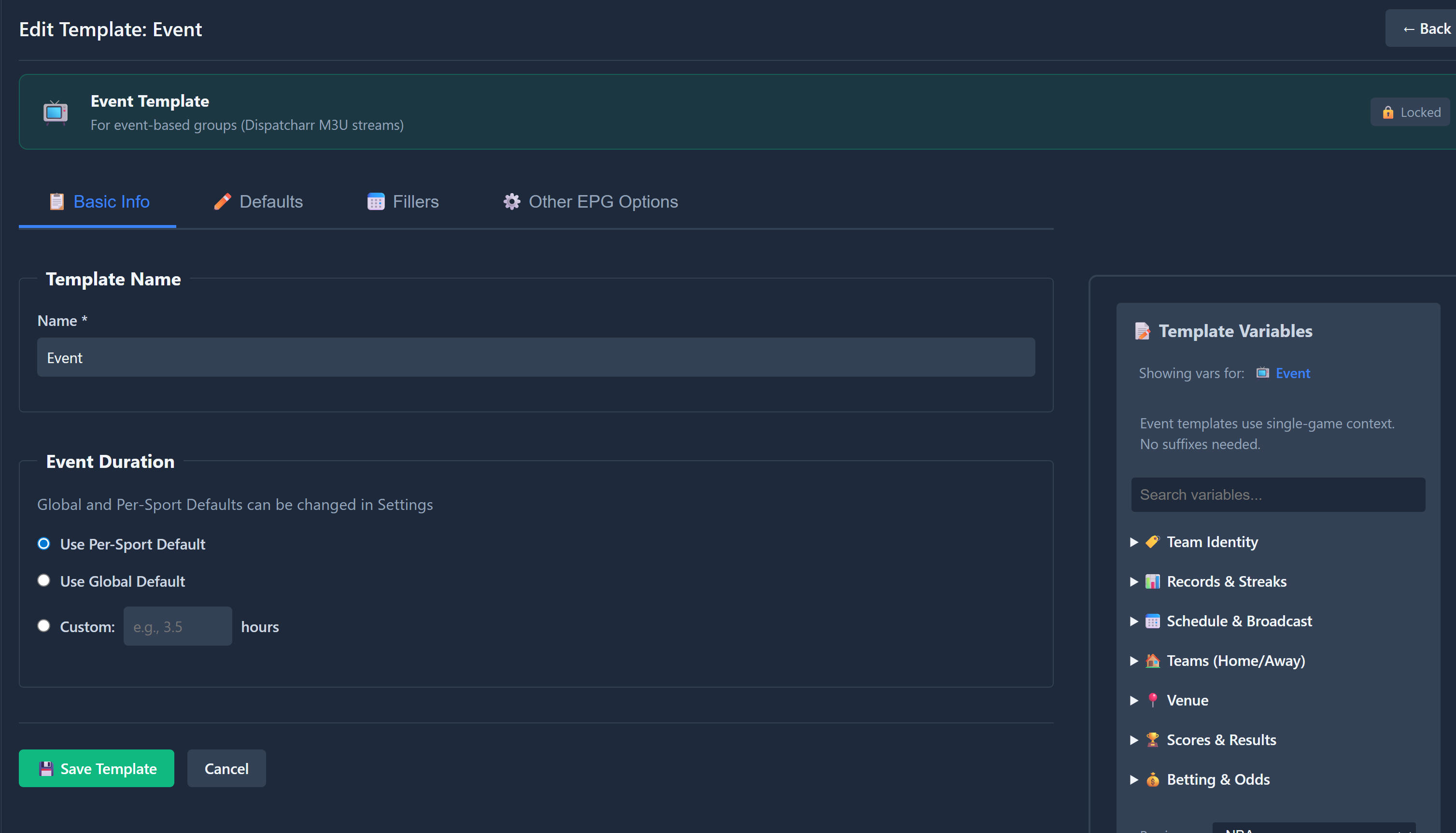
This page you name your template and set the Event duration either Per Sport or
Global Default (in Settings) or Custom for all sports using this template
Then go to the Defaults tab
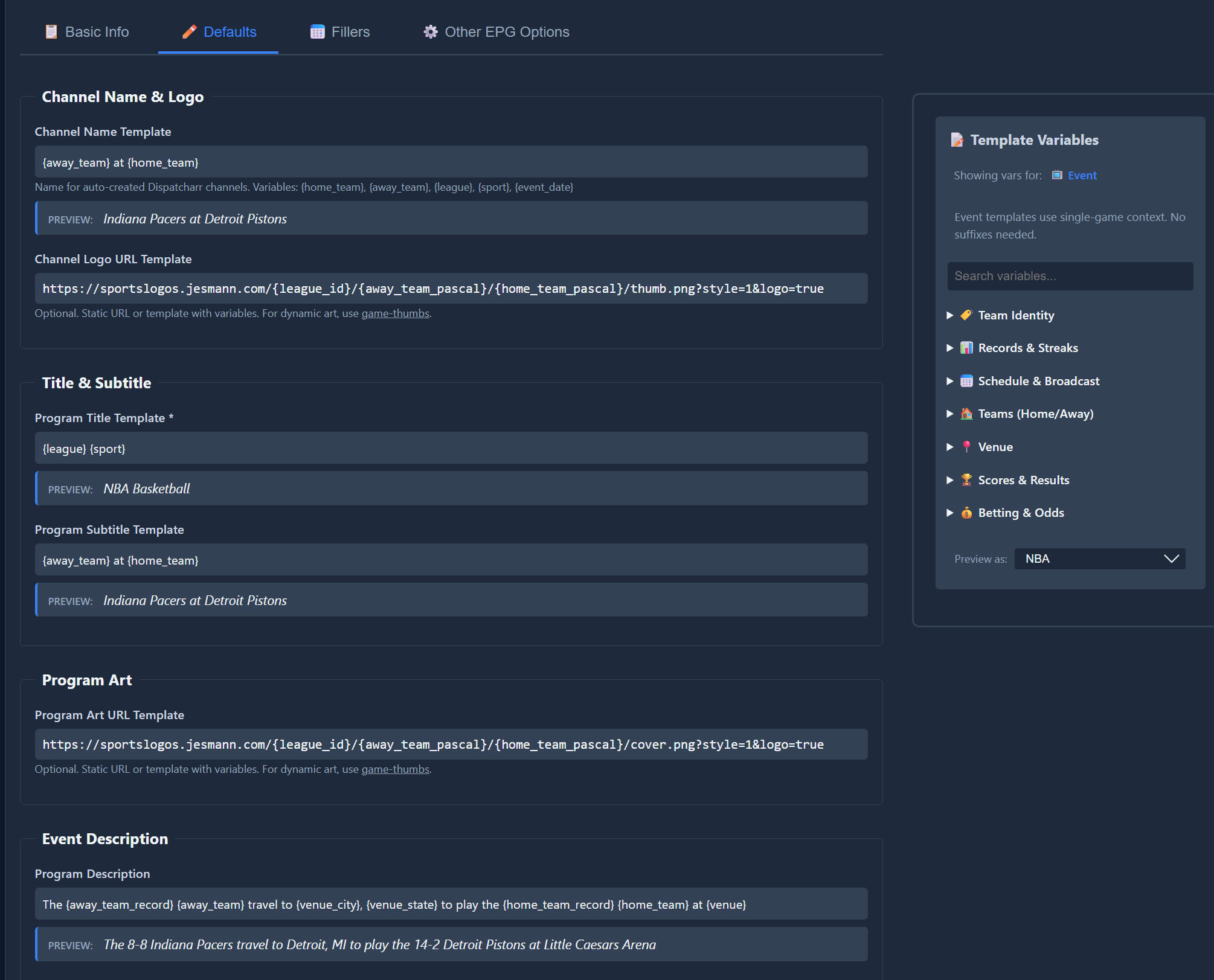
Channel Name will be what the Channel Name will be for the Event in Dispatcharr
Channel Logo URL Template is used to display an image for the channel.
You can use any source for this demo it's a hosted mirror of Game-Thumbs which
you are free to use
or host your own
https://github.com/sethwv/game-thumbs You use template variables to create
the image links. For this template using Style 1 of the thumb (vertical)
image for the channel and the cover (horizontal) image for cover art.
Using this style "https://sportslogos.jesmann.com/{league_id}/{away_team_pascal}/{home_team_pascal}/thumb.png?style=1&logo=true"
for example the NFL game Kansas City Chiefs at Houston Texans will create the
image
https://sportslogos.jesmann.com/nfl/KansasCityChiefs/HoustonTexans/thumb.png?style=1&logo=true
in the EPG automatically.
Use the Template Variables to customize how you want the EPG to appear and the
preview will give an example of the output.
Fillers
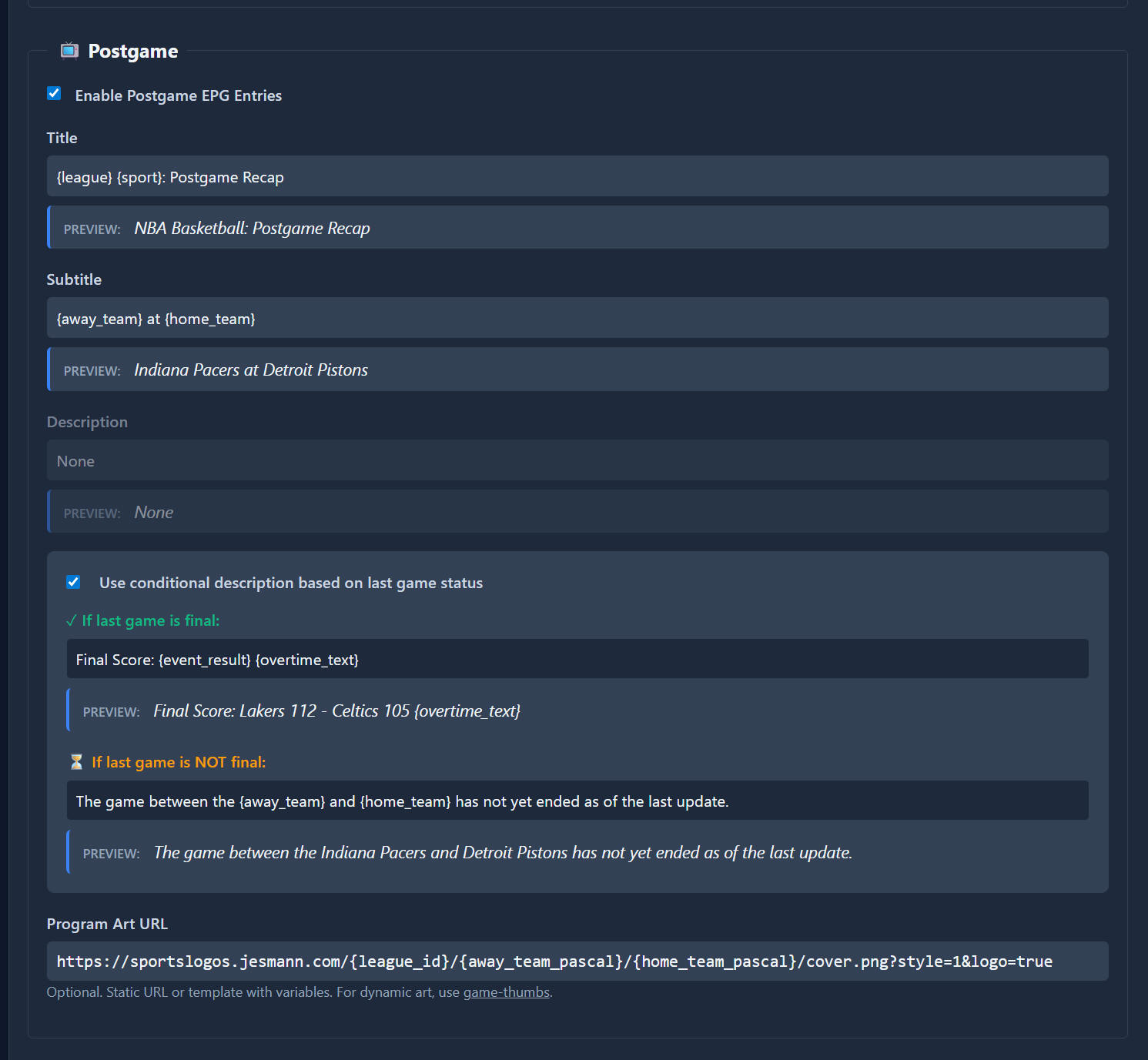
Use the variables to customize pregame and post game as desired.
Post game you have an optional conditional formatting that each run of the EPG
generation the ESPN API
is checked for a game result and you can customize to
include the final score with variables
Other EPG Options allow you to specify Categories and add a <date> <new/> and/or
<live/> tag on the game itself.

Team templates work the same way although you can also have an Idle Day template
to be displayed on days where the team doesn't play. There is also a
Conditions page
where you can set up custom templates to be used if certain
conditions are met such as a willing streak.
Teams tab is where you set up which Team Channels you wish to be added to the
EPG
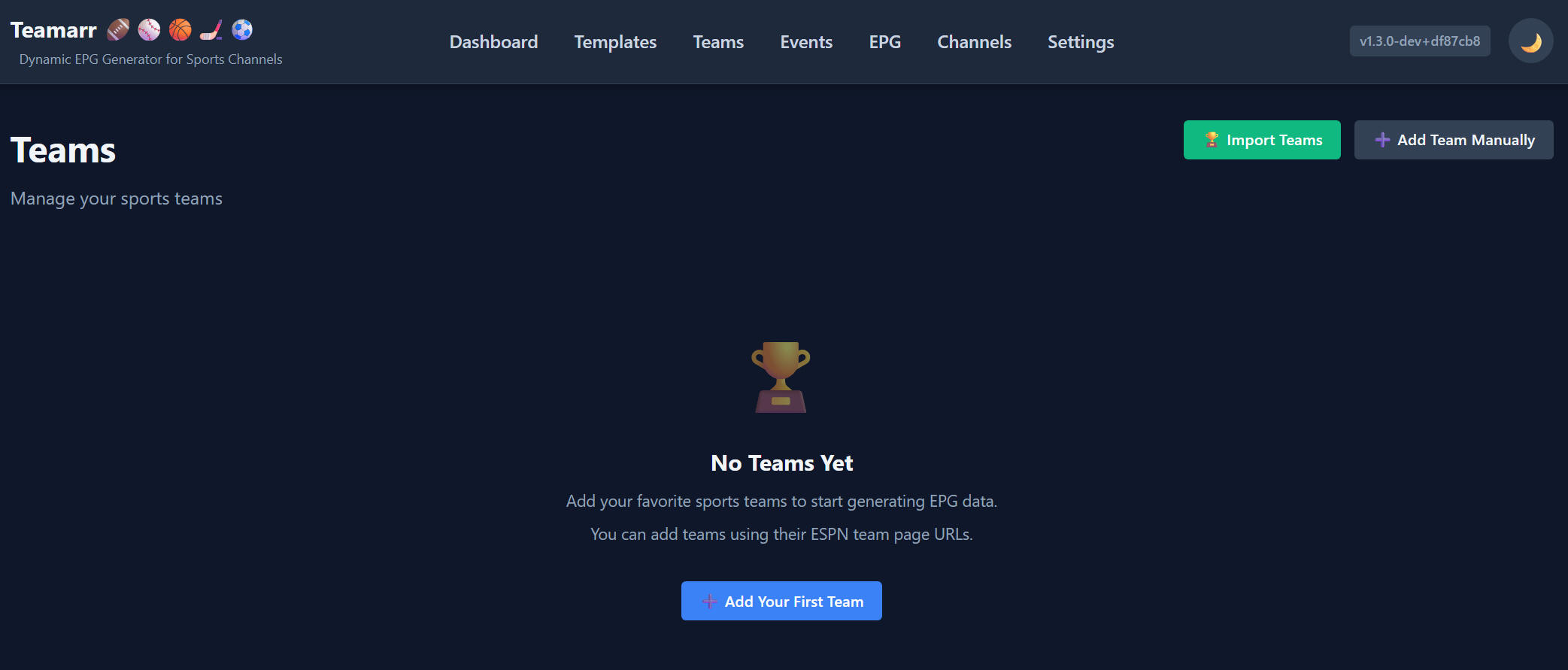
Import Teams what you will use to import teams by league
automatically
Add Team Manually (Advanced) go to a team page on the ESPN
website and copy the link to import.
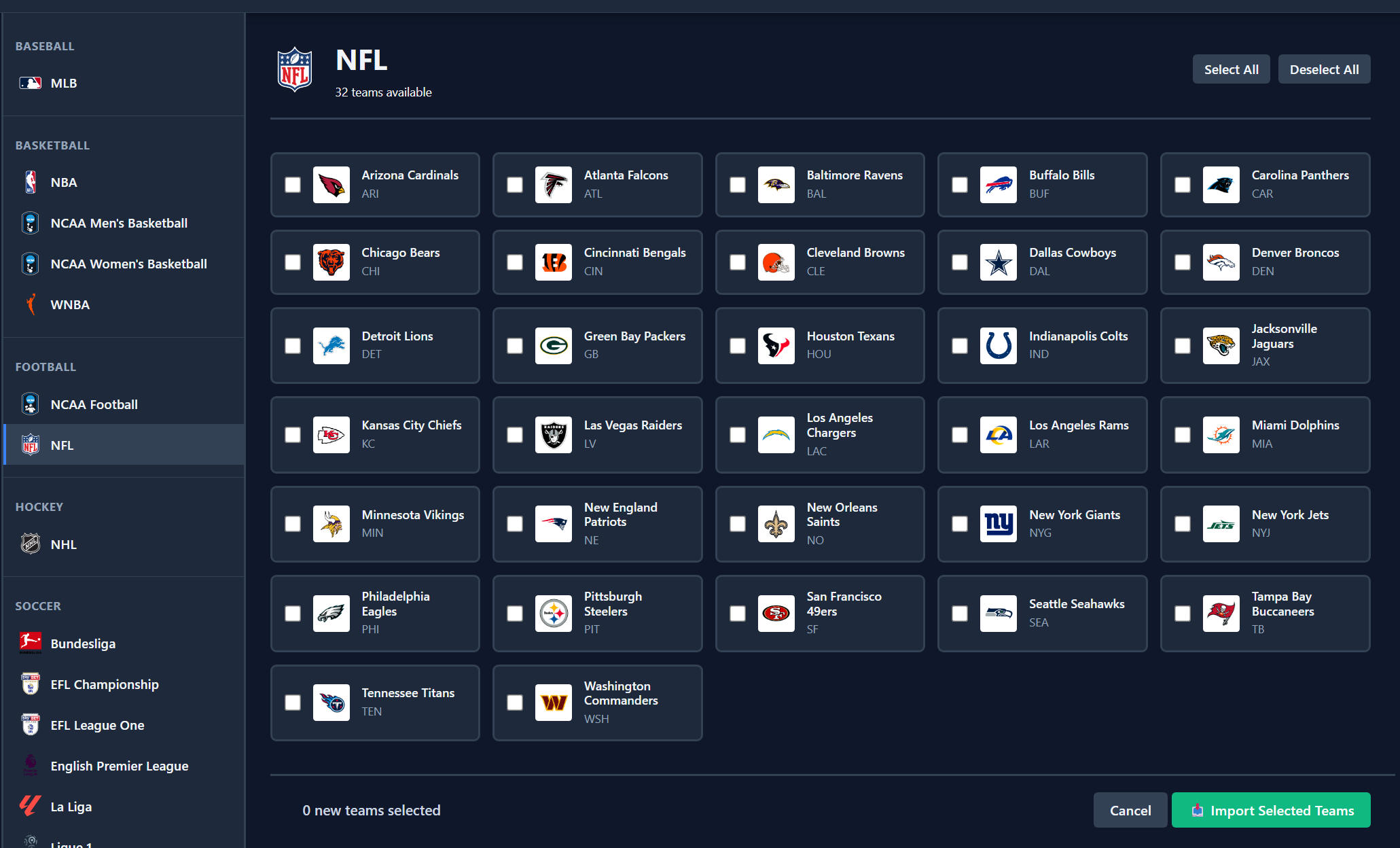
For this we're going to Import Teams
On the left side choose the sport such as NFL then select any or all of the
teams you want to add then Import Selected Teams
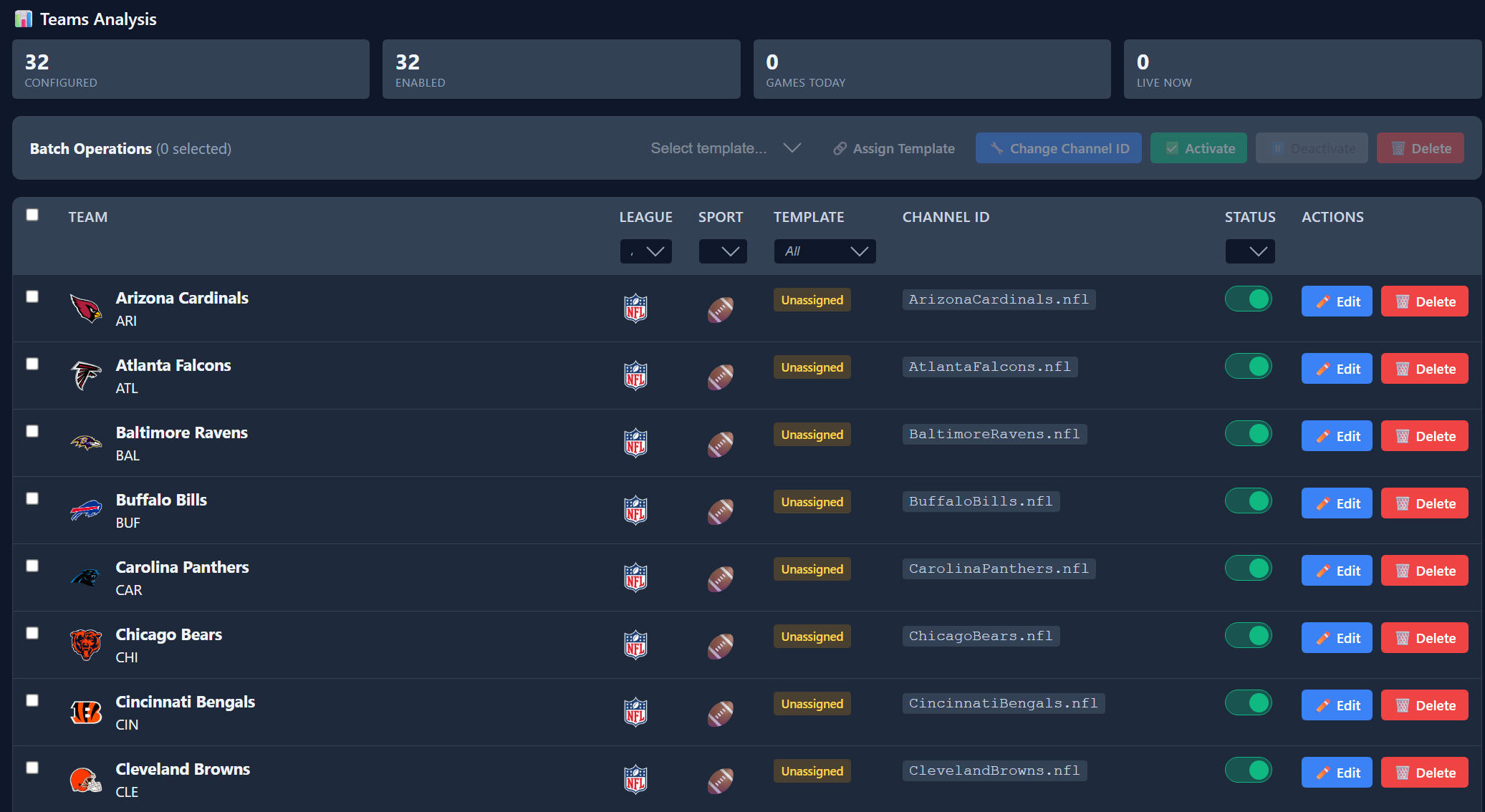
Now when you go to Teams you will see all your teams setup.
The Channel ID is how the tvg-id will match and the default (in settings) is
{team_name_pascal}.{league_id}
The teams need to be assigned to a template whicch you can select the teams then
Select Template (Team in the example) and Assign Template. Now your Team
EPG is setup.
Event setup further down.
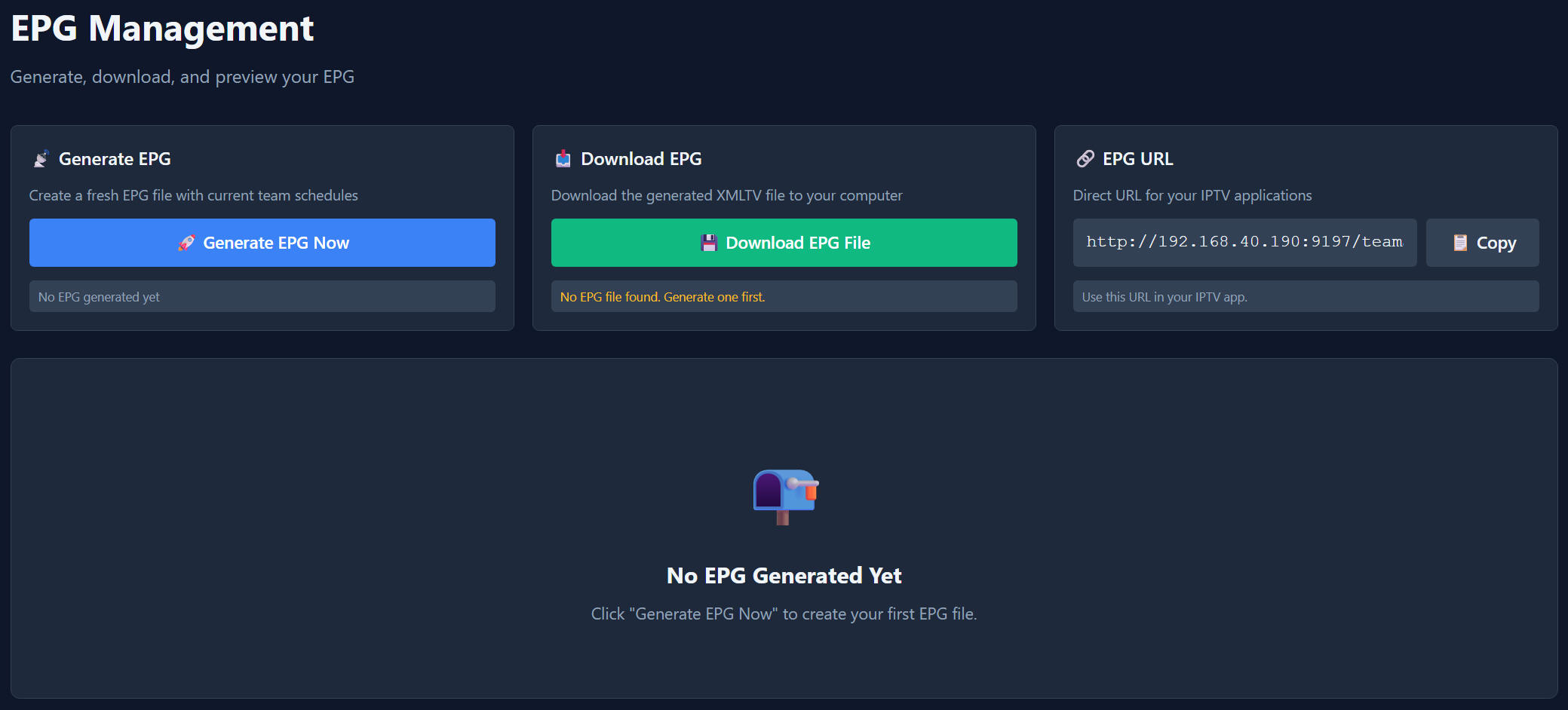
The EPG
tab is where you manage the EPG before doing Events we
need to generate and add to Dispatcharr then go to Settings and enable
Dispatcharr Integration.
Generate EPG
creates a manual EPG run.
Download EPG allows you to manually download to your device
EPG URL is the URL to add to Dispatcharr for your Teamarr EPG just Copy
the Link and add in the M3U & EPG Manager
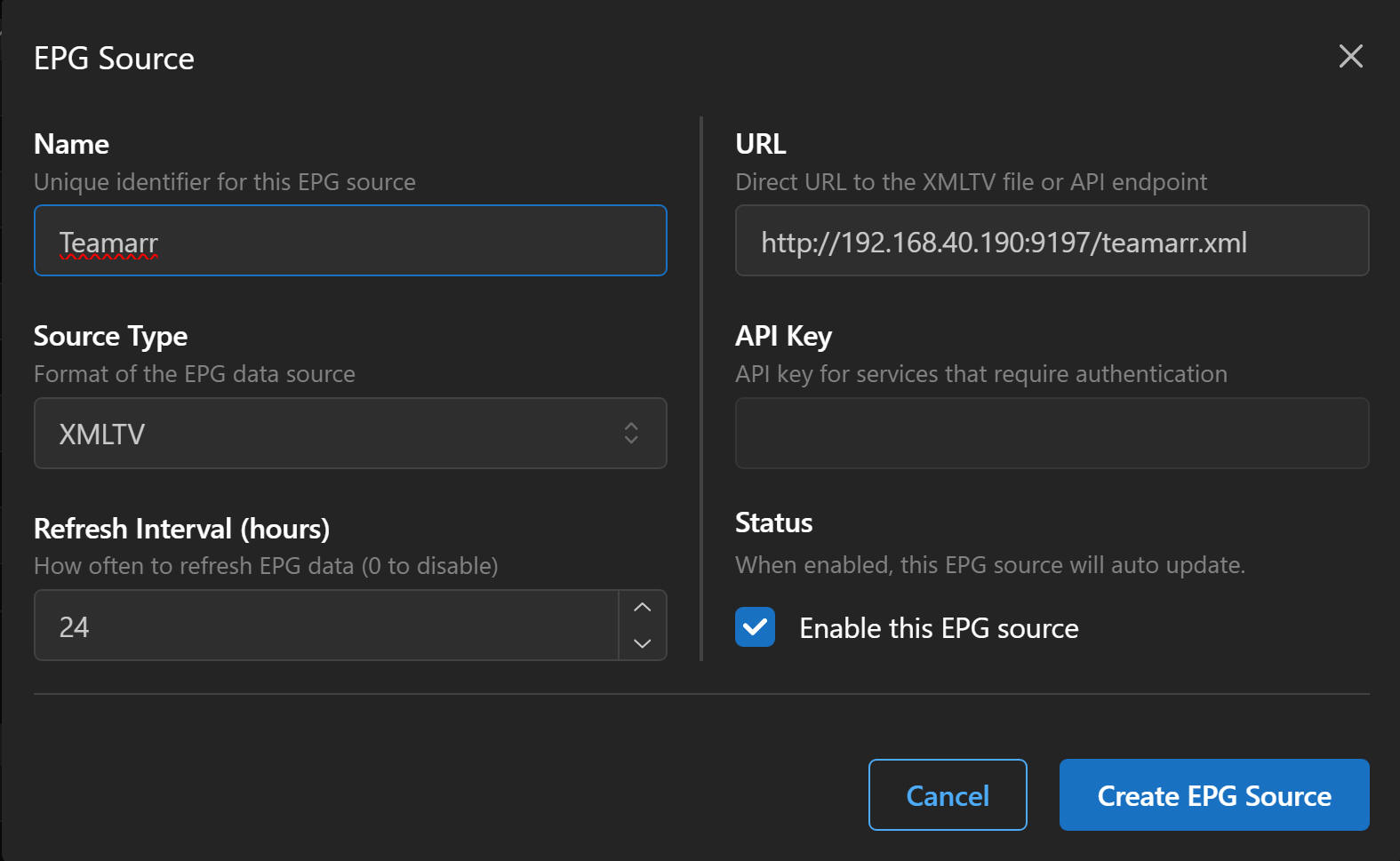
Now go to the
Settings tab in Teamarr
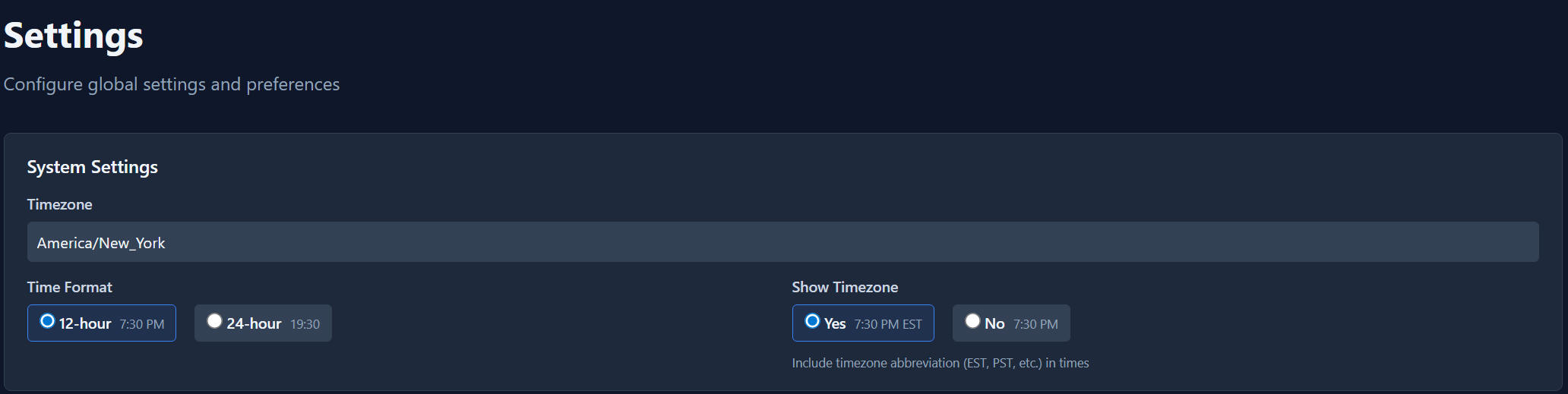
You can edit the Timezone but it should be set to the Timezone already set by
the docker compose. You can also set the Time Format and if you want the
Timezone shown
in the EPG if you included an event time in your templates.
(Note EPG output will be in GMT/Zulu/+0000 time as most EPG sources are this
does not affect the time of the events shown)
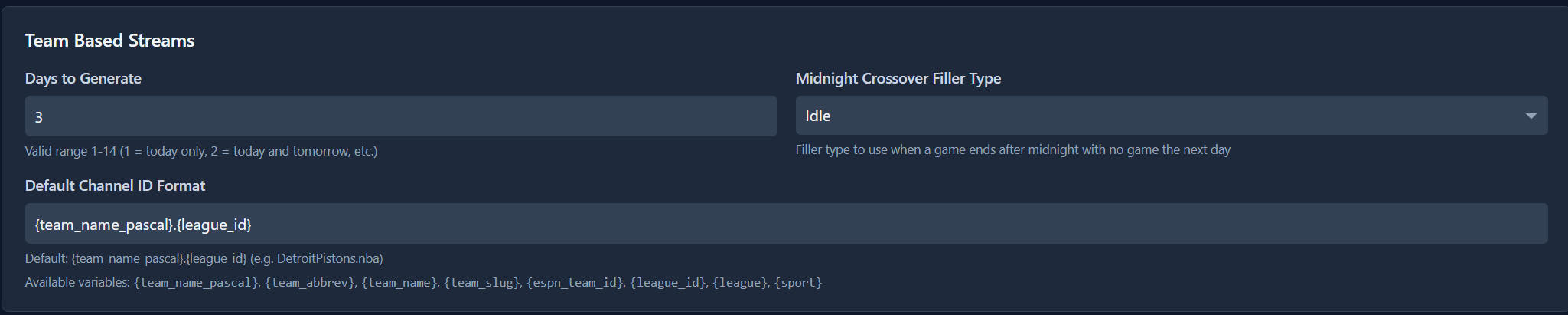
For team channels specify how many days you want in the EPG. Midnight
crossover is after a game do you want the postgame recap to continue after
midnight (local time)
or switch to Idle game "No Team Game Today". You can
also change the default Channel ID Format the default was demonstrated earlier.
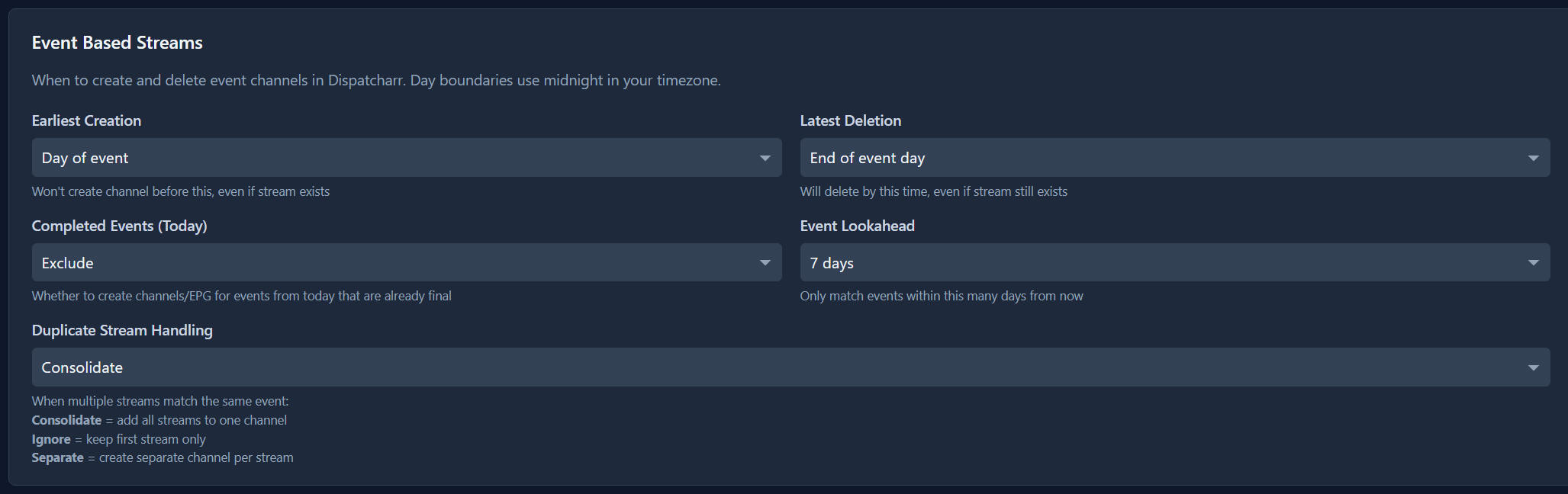
Event based streams by default will create a channel at Midnight (local time) or
when an event first appears in the M3U if not there at midnight and delete at
11:59pm local time)
if completed. You can choose to include or exclude
completed events and how many days to look ahead to match events.
Duplicate Stream Handling would be if you have more than one source with the
same event how to handle those.
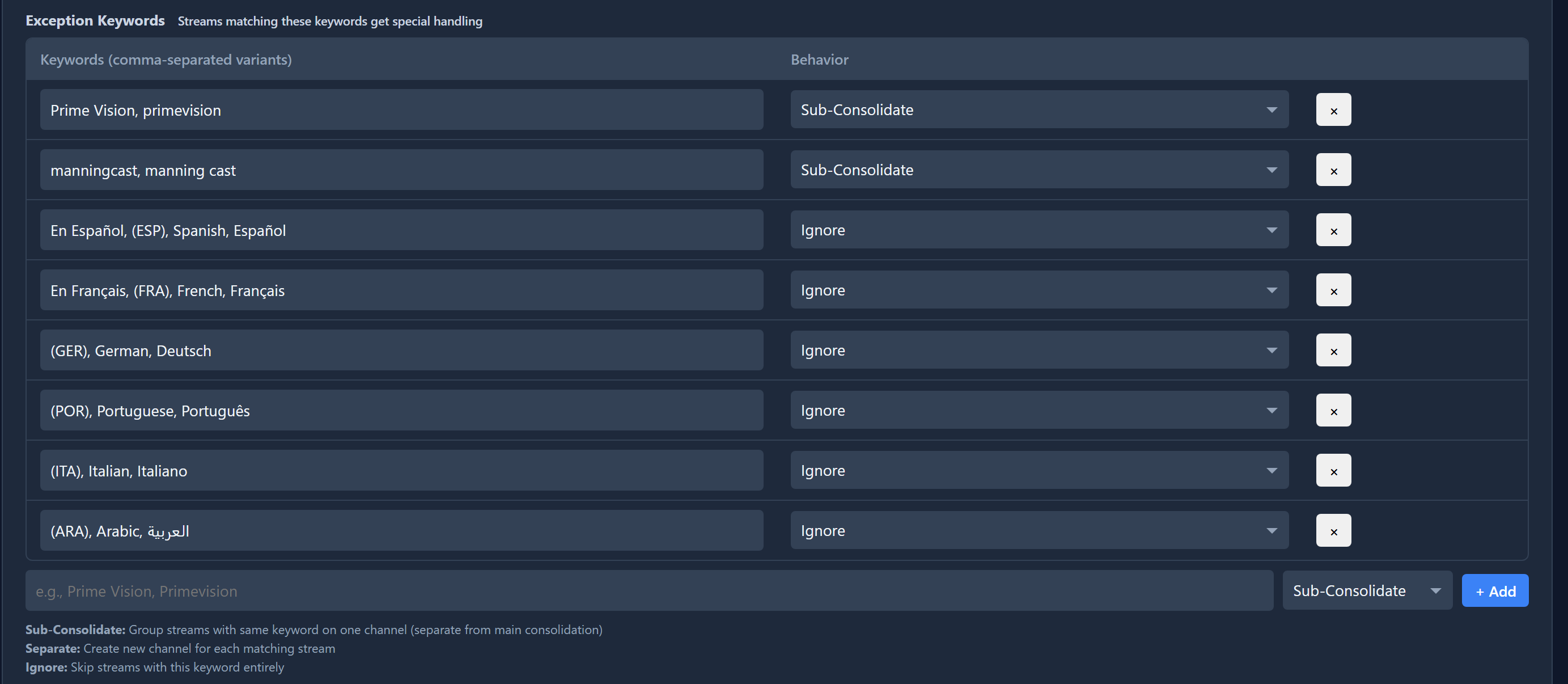
Exception Keywords
are how to handle alternate telecasts or alternate language streams. You
can use the defaults or customize your own.
Sub-consolidate
will create a new channel for all streams matching the keyword separate from the
main channel.
Separate
will make separate channels for all streams matching the keyword.
Ignore
will skip all streams that have the keywords.
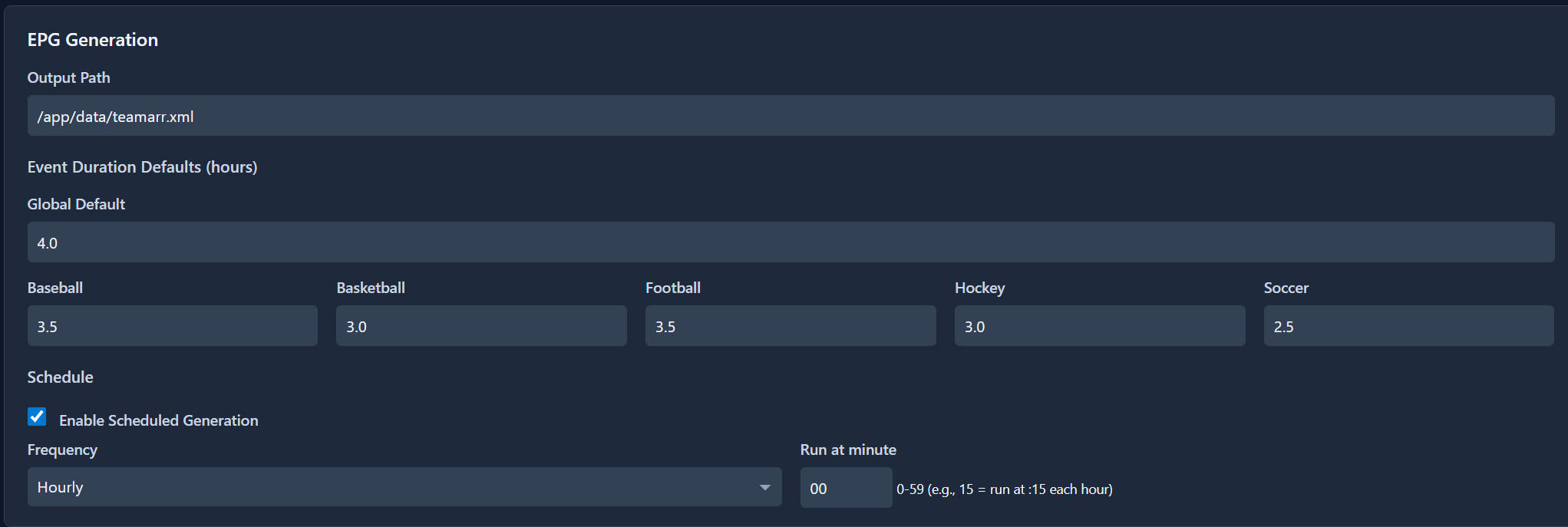
This is where you can change your general default and per sport default as well
as set the automatic schedule hourly at the same time each hour (useful if
adding stats and scores)
or daily at the same time each day.

Dispatcharr Integration
Enable to use Team Channel creation and automatic refresh. Add
your Dispatcharr URL if not
http://localhost:9191 and your Dispatcharr admin username and password
then
press Login & List EPGs then under Select EPG Sourch choose the
one you created earlier in the Dispatcharr M3U & EPG Manager.


Advanced Settings change if you wish then Save Settings to save
all Settings
Now that the Dispatcharr Integration is setup we can now create Events
Go to the Events page and
Import your first group

On the left side you will see all your providers select the first
provider you wish to use

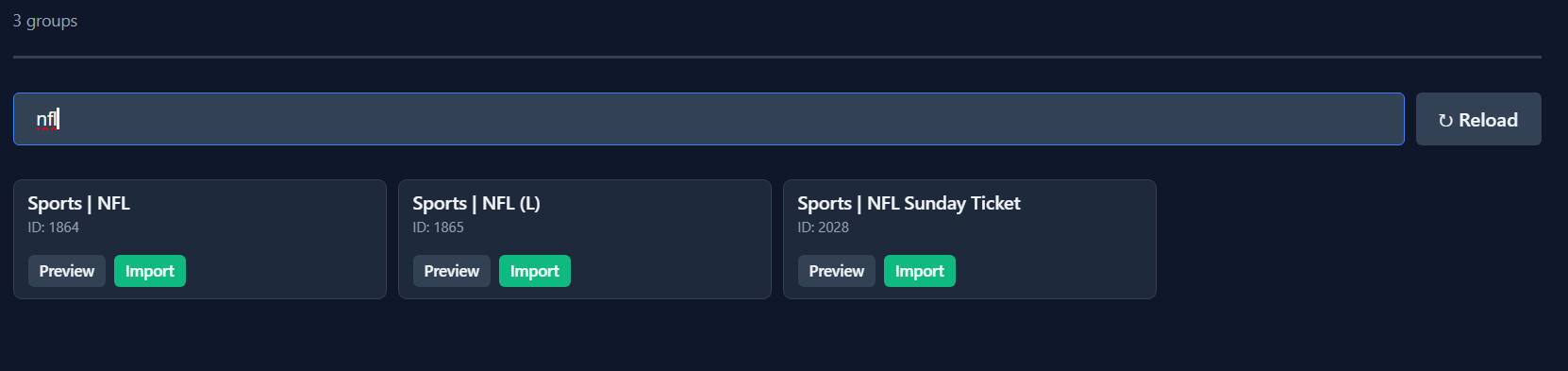
All the groups will load but you can narrow it down by searching for
example NFL then click Import
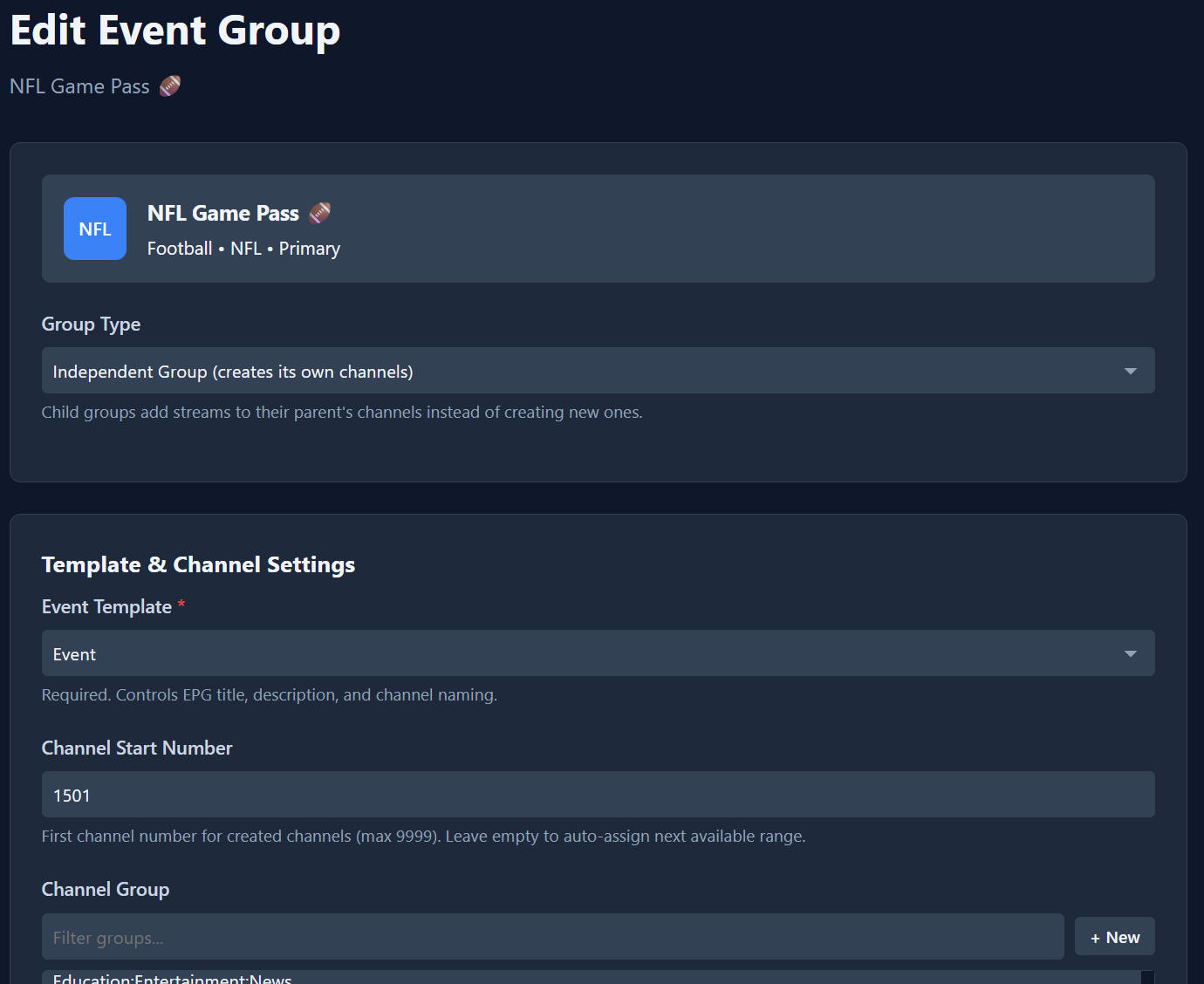
for Group Type the Independent Group will be used to create Event channels in
Dispatcharr if you have another group with the same sport you can choose for the
group to
be the Child of another for adding all streams for the event to the
same channel for failover. Then you choose which template to use, the
starting channel number, the group
name and if you want to add to a different
stream profile instead of default or a channel profile. Advanced users can
include custom regex to include or exclude teams.
Once done Save
Changes then repeat for additional providers or groups.
Once complete you should see your settings
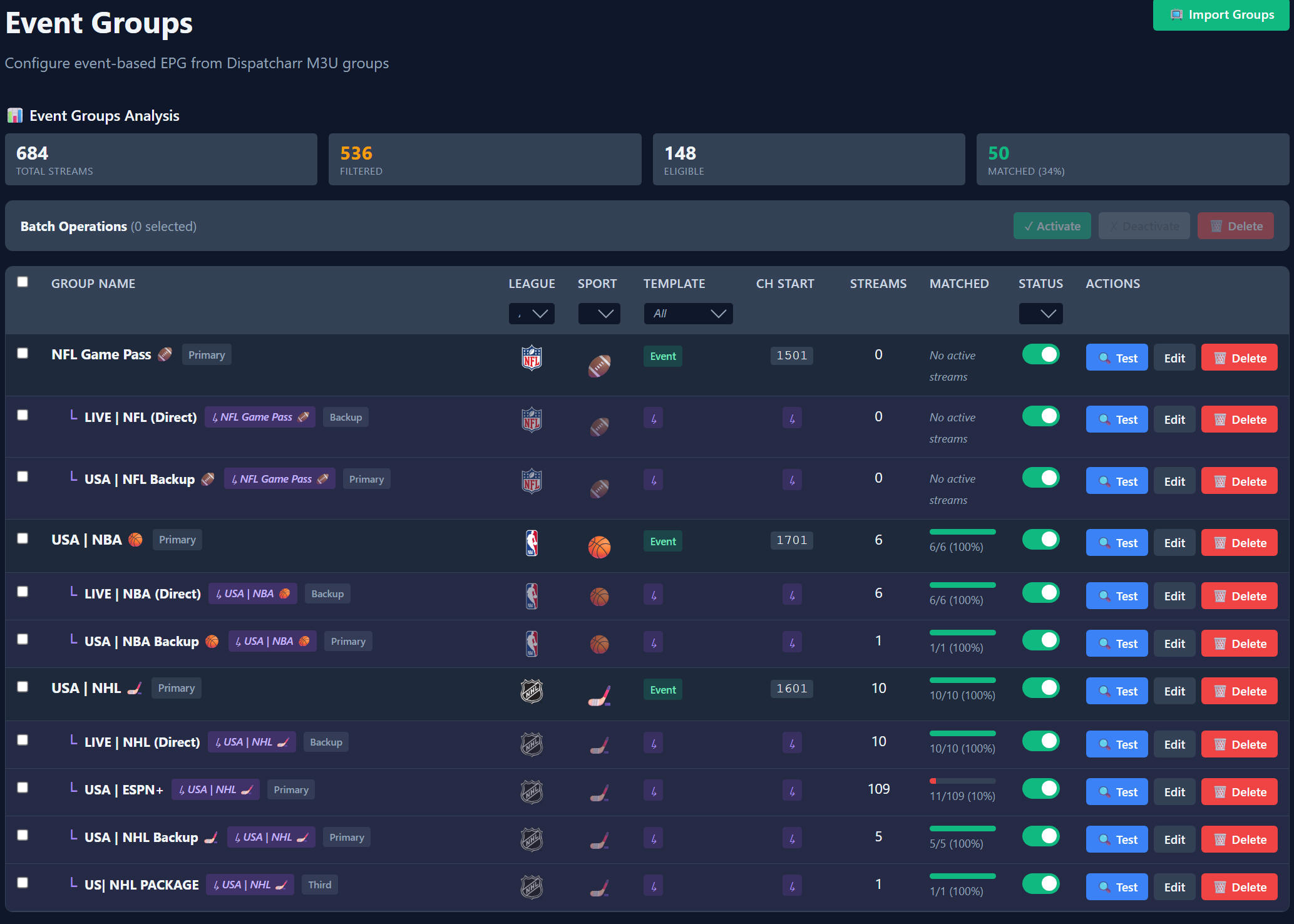
Once the next EPG is ran either scheduled or manually the Event channels for
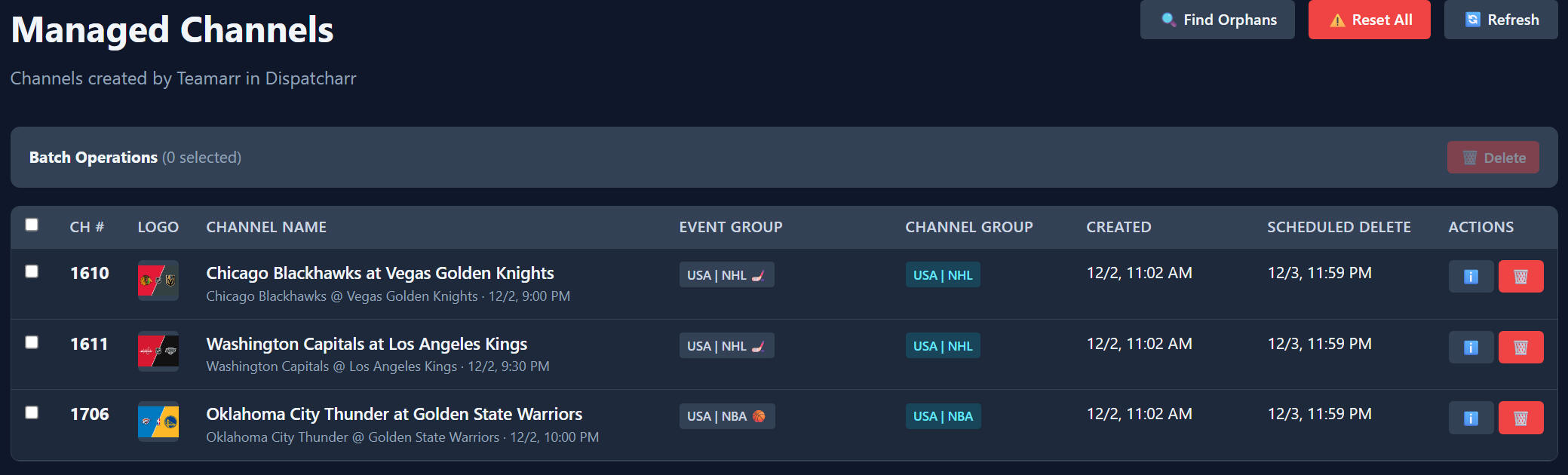
today will be created in Dispatcharr and you can see on the
Channels
tab
At the time of this creation I have 3 channels left from the night before as the
event had not ended by midnight (local time) and the events for today are not
yet updated in the M3U.
So you can see the channels in Teamarr
You will also see them in Dispatcharr
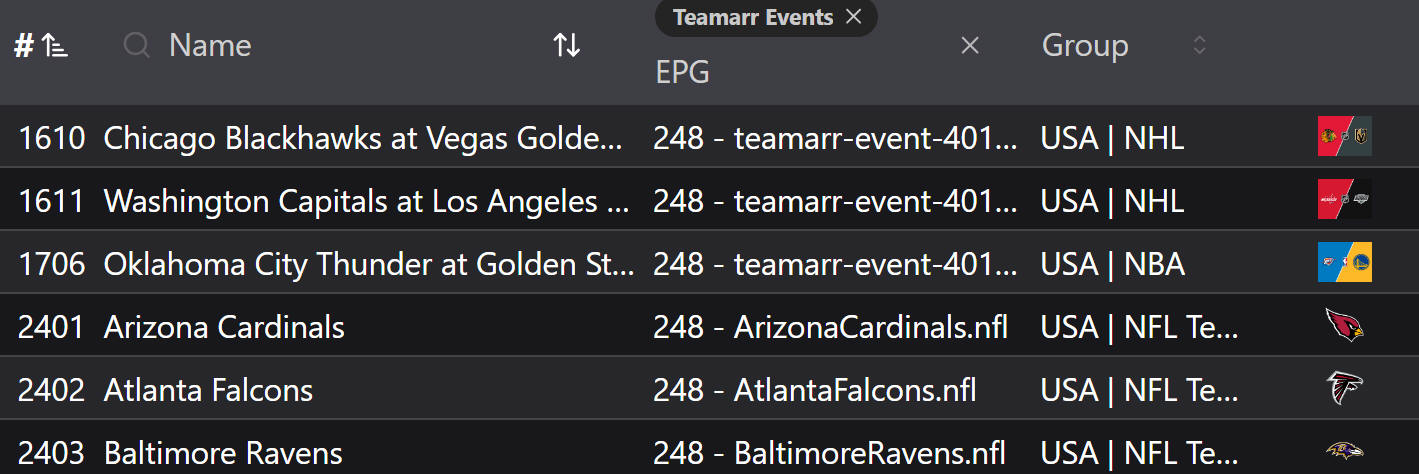
The event channels are listed here first and are auto assigned to their EPG.
Team channels I created before and added all sources as well. Auto Match
will work or you can manually assign.
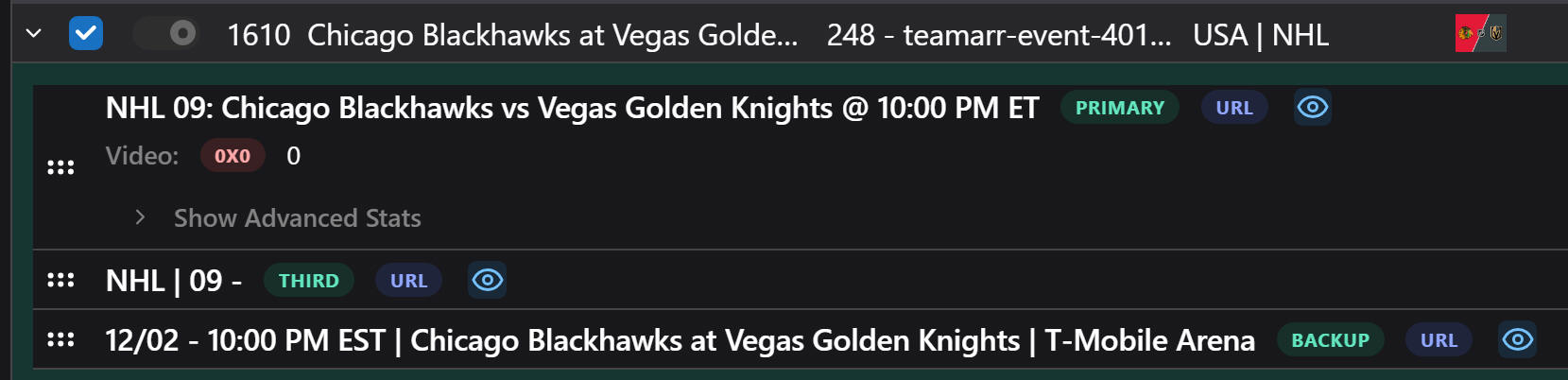
This also shows streams from multiple M3Us added since it was set up that way.
Hopefully this helps you get setup. Any questions you can ask in the
Dispatcharr Discord and issues you can open in Github.
Disclaimer: This is an independent walkthrough of an
independent project. Please use for educational purposes only with your
legally obtained sources.
No warranty or other rights implied.

